

As a matter of good practice, users should backup their Firefox bookmarks along with their other personal data on a regular basis. There are two methods by which to backup Firefox bookmarks without using third party add-ons or software. Need help restoring bookmarks? Read ‘How To Restore And Import Firefox Bookmarks‘ to learn how.
Export Firefox Bookmarks
Using this method backs up all your Firefox bookmarks to an HTML file for easy transfer between browsers. If you import bookmarks from an HTML file, its contents are added to your existing bookmarks.
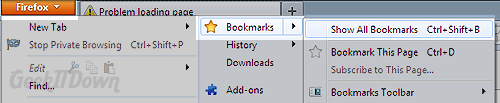
- Click on the Firefox button in the top left hand corner of the browser.
- Highlight and click ‘Bookmarks’ or ‘Show All Bookmarks’.
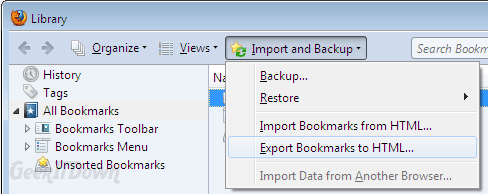
- Click ‘Import and Backup’ (located along the top menu next to the search box).
- Click ‘Export Bookmarks to HTML…’.
- Name your bookmarks file. We recommend something date specific to keep track of when you last performed the backup. Example: my-bookmarks-10-28-2011.
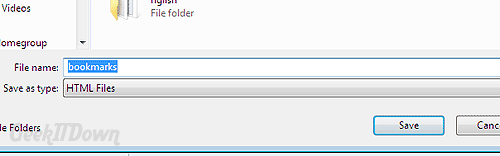
- Click Save. Be sure to note where you save them so that you can find them later if needed.
Backup Firefox Bookmarks
Using this method backs up all your Firefox bookmarks to a JSON file. Firefox, by default, automatically makes periodic backups saved in the JSON format. If you restore a JSON file it replaces your existing bookmarks with the contents of the backup file. Your existing bookmarks (the ones before the restore) are removed.
- Click on the Firefox button in the top left hand corner of the browser.
- Highlight and click ‘Bookmarks’ or ‘Show All Bookmarks’.
- Click ‘Import and Backup’ (located along the top menu next to the search box).
- Click ‘Backup…’.
- Name your bookmarks file. We recommend something date specific to keep track of when you last performed the backup. Example: my-bookmarks-10-28-2011.
- Click Save. Be sure to note where you save them so that you can find them later if needed.
Other Notes
The export method creates a universal HTML file that can be used to transfer your Firefox bookmarks to other browsers like Chrome, Opera, IE and others.
Related Articles: How To Restore And Import Firefox Bookmarks
If you enjoyed or found this article useful, please show us some support by liking us on Facebook or by sharing us on your favorite social website. Thanks!