

 There is a common issue with the format used in newer versions of MS Office Word documents. Sharing those documents with others, who use older versions of Office, can be a challenge. That’s where Docx2Rtf comes in.
Routinely, those who want to share documents created in the .docx format need to save the file in a old format to ensure the recipient can open the document. Docx2Rtf can make sharing documents for purposes of informational exchange or similar a bit simpler.
Docx2Rtf
Docx2Rtf Converter by NativeWinds is a free program which converts MS Word 2007 docx and OpenOffice .odt and .sxw files into .rtf or .pdf formats. The huge plus about this program is that you don’t have to have MS Word or OpenOffice installed to use it. Recipients can convert the files themselves, making for less back and forth about file formats and conversions.
Rtf format is the Rich Text Format used by WordPad, which is installed on all Windows systems by default. Converting .docx to .rtf format means anyone using a Windows machine will, at very least, be able to open and read it.
Pdf is the widely used Portable Document Format which was created by Adobe. Most users today rely on pdf as the de facto document exchange media and as such, typically have one program or another that will read and open pdf files.
Using Docx2Rtf
- First, grab your copy of Docx2Rtf and install it.
- Open Docx2Rtf and click ‘Select File’ in the upper left hand corner.
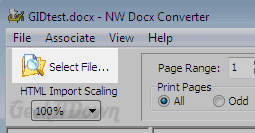
- Choose the MS Word 2007 .docx file you want to convert.
- In the upper right hand corner are the ‘Create PDF’ and ‘Save as’ options. Click ‘Save as’ to save in .rtf format, otherwise click ‘Create PDF’.
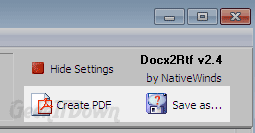
- Save it to your desired location and you’re done.
Saving in rtf format will not convert images. However, we did have some success when converting to PDF with images.
Your Thoughts
Have you used Docx2Rtf in the past? Do you use another form of conversion? Share your experience in the comments!
If you enjoyed or found this article useful, please show us some support by liking us on Facebook or by sharing us on your favorite social website. Thanks!
The easiest way to convert PDF documents to Word and other editable formats is to use Smart PDF Converter. It works even with scanned image files. http://www.pdftodocconverterpro.com