

 Ubuntu 11.10 was released in October and with it came numerous possibilities for look and style. By default Ubuntu 11.10 comes with Unity desktop environment, but that can easily be changed by installing gnome-shell. Gnome-shell is an alternative to Unity and replaces the old gnome panel. Today we’ll be looking at how to add shortcuts to the favorites dock in gnome-shell.
Introduction
After installing Ubuntu, the first thing I wanted to add was gnome-shell. For one reason or another I appreciate the look and feel over Unity. I’m not alone and customizing gnome-shell can be a real hassle at times. One area in particular that irked me for a time was adding more favorites to the dock. Sure, it’s easy if an application is listed under ‘Applications’, but what if an application isn’t listed?
Take Firefox for example. Here at GeekITDown we regularly use nightly builds and as a result we may not have that version listed in applications. In our example, the Firefox build is located in our .pot directory and as such it isn’t listed in the Applications list/menu, but we want the application to be easily accessible.
Adding The Shortcut/Launcher
First we need to create the shortcut and place it in the right location. The code below opens a new window where all the shortcut information is entered and upon clicking OK, the shortcut is placed in ~/.local/share/applications/ so that it becomes available in the Applications Menu/List.
- Open a Terminal window and type the following:
[notice type=”blue”]gnome-desktop-item-edit ~/.local/share/applications/ –create-new[/notice] - Enter all the information for the application you want to create a shortcut for. In our example, we use Firefox. Be sure to note the name for your application, you’ll need it in step 4.
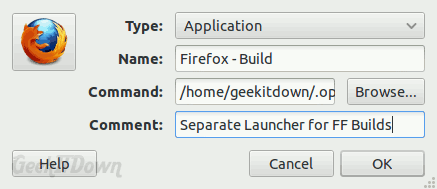
- Click OK.
- Open up the Applications Menu and begin typing the name of the application (see step 2) you created a shortcut for. In our example we type Firefox.
- You’ll notice the application is listed now. Drag the application icon to the favorites bar or right-click and select ‘Add to Favorites’.
That’s it, now your application will be listed on the Favorites bar each time you login. To remove the application from the Favorites bar, right-click the launcher and select ‘Remove from Favorites’.
Note: This method also works in Fedora.
If you enjoyed or found this article useful, please show us some support by liking us on Facebook or by sharing us on your favorite social website. Thanks!
You can start Main menu and add new shortcut from there without starting command line
Thanks! Worked great!
Just type in Main Menu in the search box and press enter.
Add a new menu item.
Click applications in gnome shell.
Navigate to item location and drag and drop into favorites bar