

There are a number of ways to view web content on television sets. In the past we’ve covered media streaming options and extensively covered the Roku box as a replacement for cable. Today we look at taking your existing TV, laptop and a single HDMI cable to view web content on your TV.
Connecting Your Laptop To Your TV
What You Need
[list type=bullet]
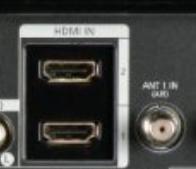
- Television with at least one available HDMI port. All modern, flat panel TVs should have these ports. They will be labeled HDMI at the input spot on the TV.
- Laptop with an HDMI port. Typically the port will be found on a side or the back of the laptop.
- An HDMI cable. This connection method provides the highest quality video display. HDMI cables are relatively inexpensive, but you’ll want to purchase one online to find the best deals. We’ve provided an Amazon item below, which we’ve tested and is offered at an awesome price.


Connect Your Devices
- Take one end of the cable and plug it into the laptop.
- Take the other end of the cable and connect it to the TV.
- Power on your devices. It doesn’t matter which device is powered on first.
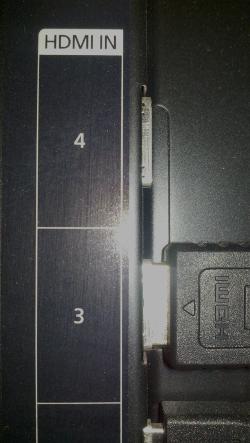
- Tune your TV to the HDMI input channel. On many television remotes, the button labeled “Source” will provide a listing of your input channels when pressed. To determine which input channel to select, look at the input port where the HDMI cable is connected to the TV. If there is only one HDMI port on your TV, then select HDMI. If there are multiple HDMI ports on your TV, then each will be numbered so that you can select the correct one.
Tell The Laptop To Display Content On The TV
In most cases, Windows 7 will recognize the change and automatically display the laptop screen on the TV. For the times when it won’t you’ll need to tell Windows what to do.
- Right-click on the desktop and select Screen Resolution.
- Look for the ‘Multiple displays’ option and use the drop down list to choose your second display (TV). If there isn’t a second display option listed, then click the Detect button.
If you enjoyed or found this article useful, please show us some support by liking us on Facebook or by sharing us on your favorite social website. Thanks!
247
Like this post
my problem is that I don’t have a 2nd display option. I have a HDMI port but it doesn’t recognise that i’s connected to a TV
@Kevin – Sounds like you’re trying to diagnose a non-functioning laptop screen. If so, without Windows auto-detecting it you could be a bit out of luck unless your laptop also has a VGA connection and you have an extra monitor that supports it. Give a shout if it’s simply an error message type issue, maybe I can give some guidance.
Your solution did not work for me. My resolution displays two devices, the resolution became fixed The options identify and detect do not do much the tv still “no signal” and the laptop is Asus UL80VT.
Hi, I tried following your instrctions but did not have the 2nd screen option. I then tried messing around with settings and have ended up with a blank screen and dont know how to change it back. Please give me some advice on this.
Thanks
@Ash – Which screen is blank, just the TV? In either case, best to start over. Disconnect everything, power up your laptop and make sure the screen is displaying correctly. Next, power the laptop down, connect the external monitor (TV) and power back up the laptop. You should have at very least a display on the laptop. From that point, follow the steps above for “Tell The Laptop To Display Content On The TV”.
When you’re in screen resolution, there are a number of settings. You’ll want to choose the duplicate display option which will output exactly what you see on the laptop to your external monitor (TV). Good luck!