
GeekITDown Computer Services

  • Home
  • GeekITDown Backup Service Pricing
  • Contact GeekITDown
  • GeekITDown Reviews
  • Checkout
  • Cart
© 2025 | GeekITDown. All rights reserved.
Call Us
352-366-1316
GeekITDown Computer Services & Technology Solutions
  • Home
  • Reviews
  • Blog
  • Services
    • GeekITDown Backup Service Pricing
    • IT Business Services
  • Contact
GeekITDown Computer Services & Technology Solutions

How To Shut Down Windows 8

Home / Blog / Computers / How To Shut Down Windows 8

Though shutting down might seem like a simple task, those who are new to Windows 8 are likely to feel like a fish out of water with regards to the new UI. Due to the nature of the new UI and the way Windows 8 relies on keyboard shortcuts, shut down of the OS is tucked away out of sight.

Shut Down Windows 8


There are a couple ways to achieve shut down of Windows 8.

Method 1:

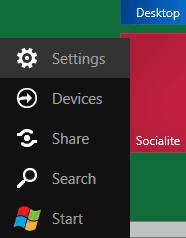
  1. Press the Windows key + C.
  2. Click ‘Settings’.
    Shut Down Windows 8 Settings
  3.  

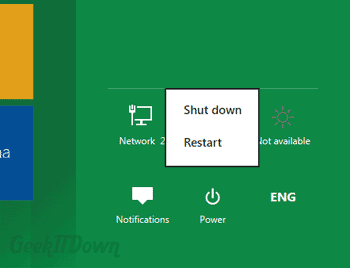
  4. Click ‘Power’ (located on right-hand side of screen).
  5. Click ‘Shut down’.
    Shut Down Windows 8

Method 2:

  1. Click the user account icon and logout.

    Shut Down Windows 8 Logout
  2.  

  3. At the login screen is a power button in the lower right hand corner, click that for shut down options.

You can read other Windows 8 related articles on our Windows 8 News page.

If you enjoyed or found this article useful, please show us some support by liking us on Facebook or by sharing us on your favorite social website. Thanks!


133
Like this post

3 Comments

  1. Jason
    Reply
    3 October 2011

    Alt-F4 works too, at least once you’re at the desktop. I’m not sure if it works on Metro “Start Menu”

    Reply
    • chief_geek
      Reply
      5 October 2011

      Thanks for commenting Jason!

      You are right of course, Alt+F4 does provide a shut down menu when used from the Desktop. However, it does not work from the Metro UI which is why we addressed it in this how to.

      Reply
  2. Windows 8 News | GeekITDown
    Reply
    22 November 2011
    Reply

Leave a Reply to Windows 8 News | GeekITDown (Cancel reply)

Your email address will not be published. Required fields are marked *

*
*

Services

Business Tech Services

Dedicated Backup Services

Home Computer Repairs & Services

Website Design

Information

352.366.1316

GeekITDown on Google

Stay Connected

© 2026 | Website by GeekITDown

Copy
Manage Consent
To provide the best experiences, we use technologies like cookies to store and/or access device information. Consenting to these technologies will allow us to process data such as browsing behavior or unique IDs on this site. Not consenting or withdrawing consent, may adversely affect certain features and functions.
Functional Always active
The technical storage or access is strictly necessary for the legitimate purpose of enabling the use of a specific service explicitly requested by the subscriber or user, or for the sole purpose of carrying out the transmission of a communication over an electronic communications network.
Preferences
The technical storage or access is necessary for the legitimate purpose of storing preferences that are not requested by the subscriber or user.
Statistics
The technical storage or access that is used exclusively for statistical purposes. The technical storage or access that is used exclusively for anonymous statistical purposes. Without a subpoena, voluntary compliance on the part of your Internet Service Provider, or additional records from a third party, information stored or retrieved for this purpose alone cannot usually be used to identify you.
Marketing
The technical storage or access is required to create user profiles to send advertising, or to track the user on a website or across several websites for similar marketing purposes.
  • Manage options
  • Manage services
  • Manage {vendor_count} vendors
  • Read more about these purposes
View preferences
  • {title}
  • {title}
  • {title}